







AI Agents
Meta Ads MCP: How to Connect Claude to Your Ad Account Safely
 Aravind Sundar · · 15 min read
Connecting Claude to your Meta ad account takes about two minutes now. You paste one URL, sign in with Facebook, and Claude can pull your reporting, build campaigns and edit the ones that are already running.
The two minutes aren't the hard part. Deciding what Claude is allowed to touch is, and most setup guides rush past it. A lot of them are written by companies selling their own Meta Ads MCP server. Fair enough, but it means the safety section usually ends in a pitch.
So here's the setup we'd use: what Meta's official server is, how to connect it, and the locks to put in place before it can change anything. There's a permissions table and four read-only prompts at the end.
What is the Meta Ads MCP server?
The Meta Ads MCP server is Meta's official connection between AI assistants and your ad account. Meta hosts it at https://mcp.facebook.com/ads, and it works with any assistant that supports MCP, including Claude, Claude Code and ChatGPT.
MCP, short for Model Context Protocol, is the standard that lets an AI assistant use another product's tools. Meta's server gives the assistant seven groups of tools:
Reporting: spend, impressions, CTR, ROAS and breakdowns over flexible date ranges
Campaign management: create and edit campaigns, ad sets and ads
Catalogs and product data
Signal health: the health and quality of your tracking signals
Search of Meta's Business Help Center
A/B tests and conversion lift studies
The activity log, the same change history you see in Ads Manager
Meta put it into open beta on April 29, 2026, under the name ads AI connectors, alongside a command-line tool for developers. On July 16 it opened the server to any developer app. If you only want Claude in your account, you don't need an app, an access token or any code.
It's also not the same thing as Meta's AI business assistant. That one lives inside Ads Manager. This one lets your own assistant in from outside.
Should you use Meta's official server or a third-party one?
Start with Meta's own unless you have a specific reason not to. Before April, getting Claude into Meta Ads meant a community or vendor server, or building your own, and plenty of those servers are still around. They come in three kinds:
Option | How it signs in | Who sits between Claude and your account | Pick it when |
|---|---|---|---|
Meta's official server | Facebook Login for Business | Nobody. It's Meta's | You want Meta only, first-party |
Hosted third-party server | Their login, then they connect to Meta | The vendor, who holds access to your account | You want several ad platforms in one connector, or a product that's read-only by design |
Self-hosted open-source server | Usually a Meta access token you paste into a config file | Nobody, but the token's safety is on you | You're a developer and want to change how the tools behave |
Watch the token with self-hosted servers. Many ask you to paste a Meta access token into a config file or an environment variable, and anyone who can read that file can act as you in Ads Manager. Meta's server signs you in through Facebook instead, so there's no token sitting on someone's laptop.
Hosted vendors are a fair pick if you need cross-channel data in one place. Read their data policy first, because you're adding one more company with access to your ad accounts.
What can Claude change once it's connected?
More than most people expect. Here's the split across Meta's tool groups:
What Claude can do | Reads or writes | Starts paused? |
|---|---|---|
Pull reports, breakdowns and the activity log | Reads | Not applicable |
Check signal health, search the Help Center | Reads | Not applicable |
Create campaigns, ad sets and ads | Writes | Yes |
Change budgets on live campaigns and ad sets | Writes | No, it changes what's already running |
Pause or turn on delivery, including turning on what it created | Writes | No |
Change targeting or creative on live ads | Writes | No |
Create, update or delete custom audiences | Writes | No |
Set up A/B tests and lift studies | Writes | No |
Paused by default is the guardrail everyone mentions, and it's a good one. A campaign Claude builds starts paused, so it can't spend until it's turned on (Jon Loomer's walkthrough shows it). But it only covers new things, and turning something on is itself an action Claude can take if you let it. The same connection can raise a budget, switch off delivery or swap the targeting on an ad set that's spending right now.
That matters because the risky request is rarely "build me a campaign". It's "pause everything with a CPA over $40", typed at 6pm by someone who forgot two of those ad sets are three days into learning. Claude will do exactly what it was asked. The locks below are there so your account doesn't depend on every prompt being perfect.
How do you connect Claude to Meta Ads?
You need access to the business portfolio that owns the ad account, and a Claude plan with custom connectors. Every plan has them, including Free, which is limited to one (Anthropic's guide). Set up the limited user from lock 1 below before you start.
In Claude on the web or desktop:
Open Customize, then Connectors.
Click + Add, then Add custom connector.
Name it Meta Ads and paste https://mcp.facebook.com/ads as the server URL. Click Continue, keep the sign-in settings Claude detects, and click Add.
Click Connect, or sign in when Claude prompts you. Facebook Login for Business opens.
Sign in as the limited user, not as your admin. When Meta asks which business portfolios to connect, tick only the one this assistant needs.
In a new chat, click +, then Connectors, and make sure Meta Ads is switched on.
Ask: "List the ad accounts you can see and the tools you have. Don't change anything." Meta rolls tool access out in stages, so this tells you what you actually have.
On a Team or Enterprise plan, an Owner adds the connector once in Organization settings, then each person connects with their own Facebook login. That's what you want: Claude only ever sees what that person could already see.
In Claude Code, Meta's setup page gives this command. It uses the ID of your own Meta developer app:
claude mcp add --transport http --client-id <META_APP_ID> meta-ads https://mcp.facebook.com/ads
Then run /mcp, pick meta-ads and authenticate. No Meta developer app? Use Claude on the web or desktop instead, which doesn't need one. The full steps are on Meta's setup page.
ChatGPT is supported too, and Meta's setup page covers it. Everything below applies the same way.
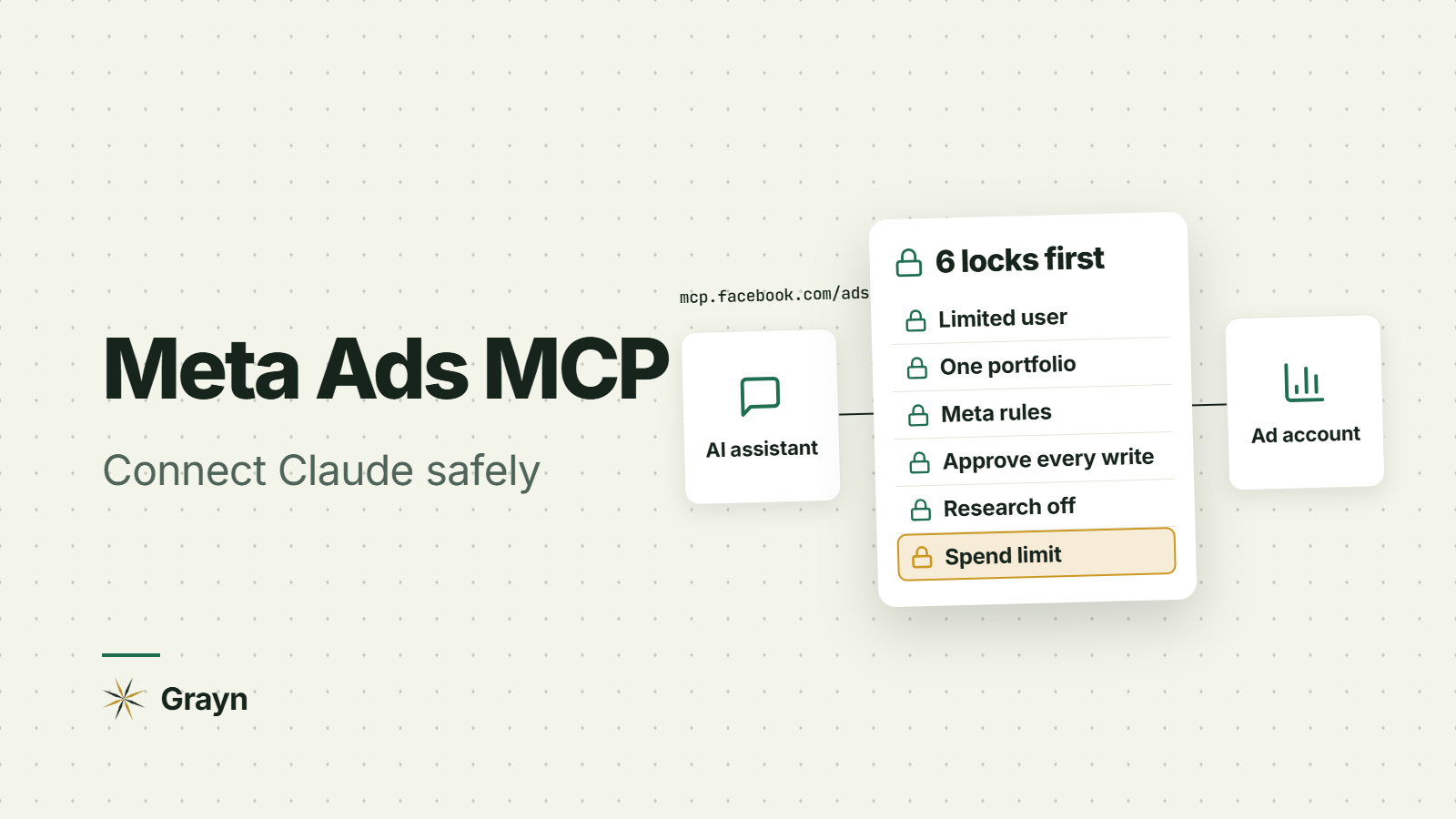
Six locks to set before Claude can change anything
Each lock lives in a different place and catches a different mistake. Set all six. It takes about half an hour.
1. Sign in as a limited user, not your admin. Whoever you sign in as is who Claude becomes: the connection works with that person's access to your ad accounts. Add a person to your business portfolio for this, give them only the ad accounts the assistant needs, and keep their permissions to the minimum the job requires.
2. Connect one business portfolio. During sign-in, Meta asks which portfolios to share. Tick one. If you're an agency, leave client portfolios unticked unless the client has agreed to an agent in their account. (Developers connecting other businesses through their own Meta app also need Advanced Access and App Review.)
3. Set ads MCP server rules. These are Meta's own limits on what any connected agent can do. They're enforced on Meta's side, so no prompt can talk its way past them. Each rule blocks one action on one ad account or catalog (Meta's rules guide): creating campaigns, ad sets or ads; budget increases above a percentage, an amount or a ceiling; targeting changes; creative changes; delivery status changes; or every action at once. You'll find them on the ads MCP server page in Business Suite settings. A sensible start:
Block delivery status changes
Block budget increases above 20% (Meta's own example)
Block targeting changes
Or block every kind of change (creating, budgets, targeting, creative and delivery status) and use it read-only for a month. That's close to what Meta recommends: start read-only or approval-required, and widen access over time. Rules are still in limited availability, so if you don't see them, the other five locks carry more weight.
4. Keep Claude's write tools on approval. Claude asks for your approval before it uses a connector's tools, unless someone has set them to always allow. Never choose "Allow always" for anything that creates, edits or deletes. Anthropic's own advice is to allow always only for tools you trust to run unsupervised, and a tool that can move ad spend doesn't qualify. When the approval pops up, read the numbers in the request itself, not the friendly summary above it. You can also switch individual tools off in a chat's Search and tools menu.
5. Switch write tools off before anyone uses Research. This one catches people out. Anthropic's docs say Research can call connector tools without asking for further approval. If someone on your team runs Research with Meta Ads connected, the write tools need to be off first.
6. Set an account spending limit. It's in Ads Manager under Billing, then payment settings. It caps what the account can spend in total and doesn't reset each month (Jon Loomer explains how it works). That makes it the one limit that holds whatever an agent, a prompt or a tired person does. Set it a little above this month's plan and raise it on purpose.
After that, put a reminder in your calendar for every few months: open Business Integrations in your Facebook settings and remove any connection nobody uses. Meta recommends the same review.
Keep untrusted text away from a chat that can write
Prompt injection is when text Claude reads contains instructions aimed at Claude. Paste in a landing page, a competitor's ad copy or a brief from a freelancer, and hidden lines in it can try to steer what Claude does next. The OWASP MCP cheat sheet covers it in detail, and Simon Willison's write-up is the clearest explanation of why connected tools make it worse.
Ad work is full of untrusted text: comments on your ads, other brands' ads, landing pages, partner emails. Meta's guidance for its MCP servers is not to give write access to agents that handle untrusted input. In practice, do research and copy work in a chat without Meta Ads connected, or with only the read tools on. Bring the conclusions into a separate chat when it's time to change something.
What setup should a consumer app team use?
Match the access to the job, not to the person asking. This is what we'd set up for most app and DTC marketing teams:
Job | Who signs in | Meta rules | Claude's tool permissions |
|---|---|---|---|
Weekly reporting and quick questions | Limited user, reporting access only | Block every kind of change | Write tools off |
Digging into a drop (tracking, creative or auction) | Limited user, reporting access only | Block every kind of change | Write tools off |
Drafting new campaigns | Limited user with campaign access | Allow creating. Block delivery status changes and budget increases over 20% | Approve every write |
Budget changes | A person, in Ads Manager | Block budget increases over 20% | Approve every write |
Turning campaigns on or off | A person, in Ads Manager | Block delivery status changes | Off |
It's the same line we draw in how far we'd let an agent go on each paid ads job: let it read and draft, and keep a person on anything that changes spend.
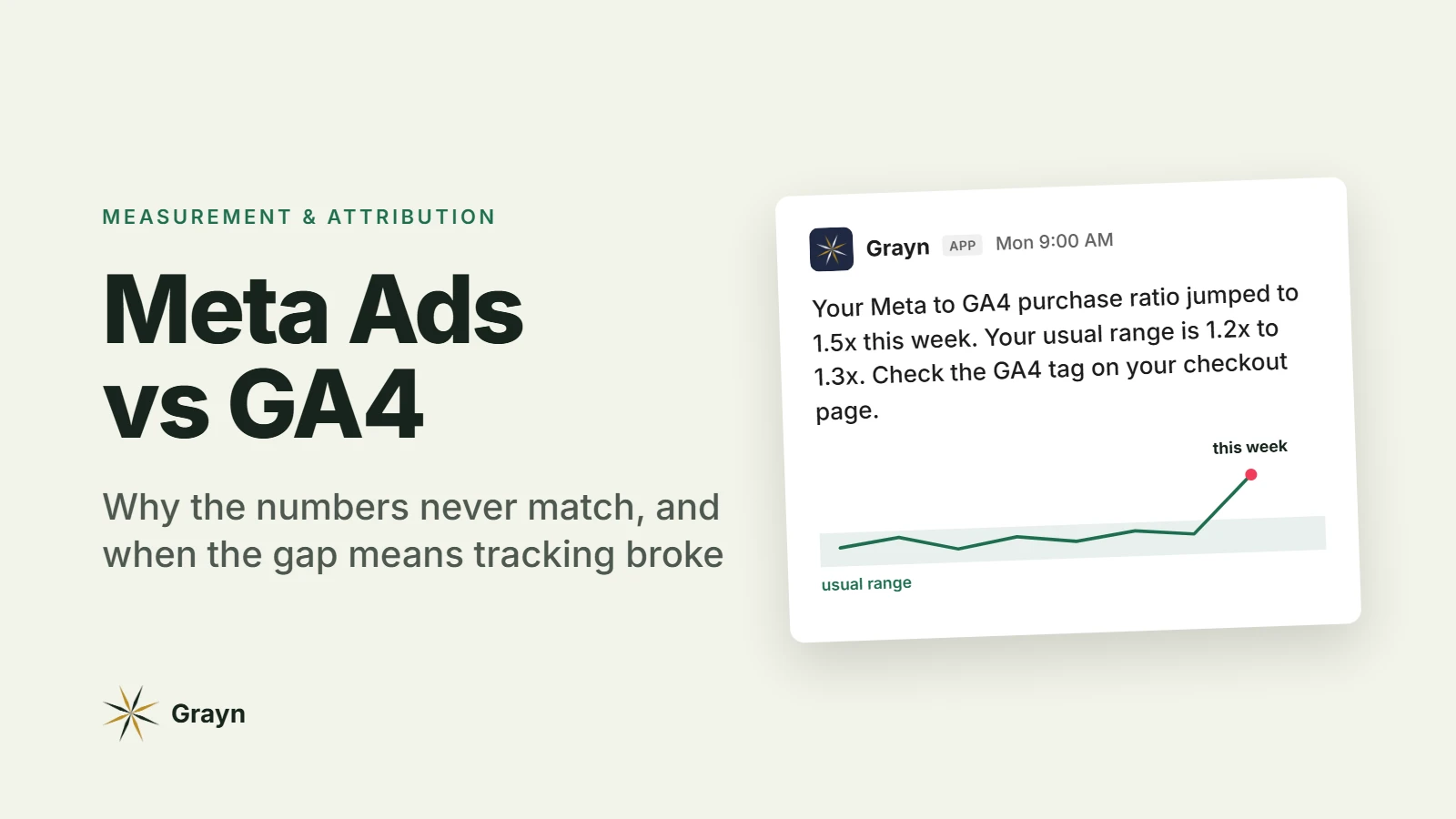
If you run app install campaigns, remember the server sees what Meta sees. It reports results the way Meta attributes them, which won't match what your subscription data says about trials and renewals. Don't let a chat make budget calls on Meta's numbers alone. Meta and GA4 never report the same number, and your subscription revenue lives somewhere else entirely.
Four read-only prompts to start with
Start every prompt with "Read only, don't change anything." It costs nothing, and it makes any approval request that does pop up stand out.
Account check
Read only, don't change anything. List every ad account you can access, the business portfolio each one belongs to, and the tools you have on each.
What moved this week
Read only, don't change anything. For [ad account], show spend, results and cost per result by campaign for the last 7 days against the 7 days before. Flag anything that moved more than 20% and tell me what changed underneath it.
Who changed what
Read only, don't change anything. Pull the activity log for [ad account] for the last 14 days. List each change, who made it and when, and point out any that line up with a jump in cost per result.
Tracking health
Read only, don't change anything. Check signal health for our pixel and Conversions API. Is anything degraded, and since when?
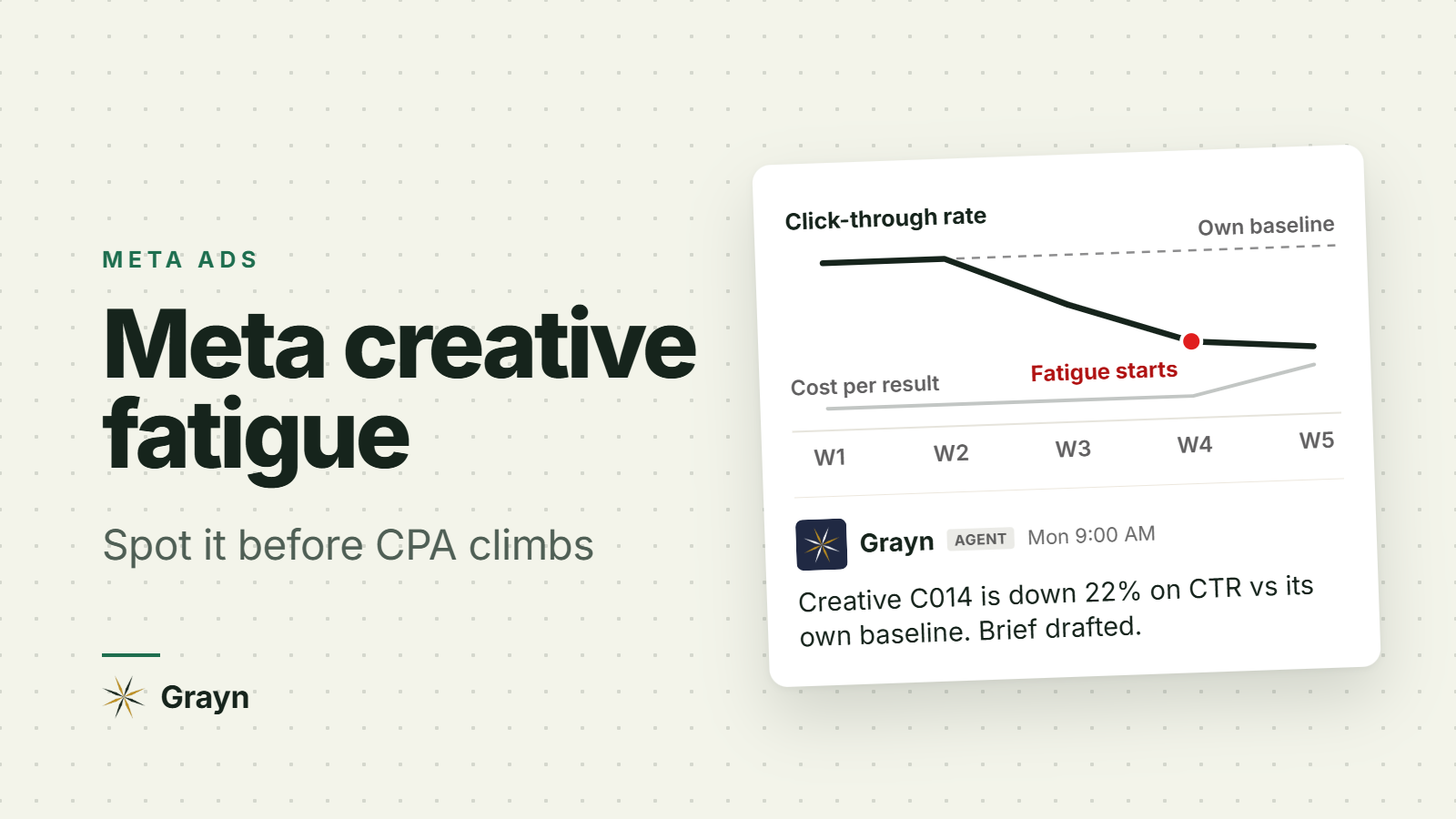
Once you trust the numbers, try harder questions. One we like: ask it to spot creative fatigue by comparing each ad's click-through rate with its own first stable week.
Aravind's take
My rule for any agent in an ad account is simple. It can read anything and draft anything, and a person presses go. Not because Claude gets budgets wrong. Because the person pressing go should be the one who knows the app update ships Thursday and the promo starts Monday. The connector makes the questions fast. The judgment still has to come from someone who was in the planning meeting.
Where Grayn fits
Meta's server solves one problem: getting an AI assistant into your Meta account. For most consumer app teams, the harder problems sit around it. Meta is one channel out of several. The connector only works when someone opens a chat and asks. And whatever it finds stays in one person's chat, not where the team works.
That's what we built Grayn for. It's an AI agent for consumer marketing teams that lives in Slack and connects to Meta Ads, Google Ads, Apple Ads (formerly Apple Search Ads), GA4, Google Tag Manager, Search Console, Braze and RevenueCat. Day to day, that looks like this:
Ask in Slack. Tag @Grayn in any channel and ask in plain English, like "How did Meta compare with Google Ads last week?" or "Which creatives are showing fatigue right now?" The answer comes back in the thread with the numbers and a chart, so the whole team sees it.
Alerts when something moves. Set the lines that matter to you, such as CPA above target, ROAS below it, pacing off, or CTR falling against its own baseline. Grayn posts in the channel you choose with what changed and a drafted next step.
Digests on a schedule. Daily or weekly cross-channel summaries land in Slack without anyone pulling a report.
Creative help. It ranks your creatives, drafts briefs from your best-performing ads and pulls competitor ads from Meta's Ad Library.
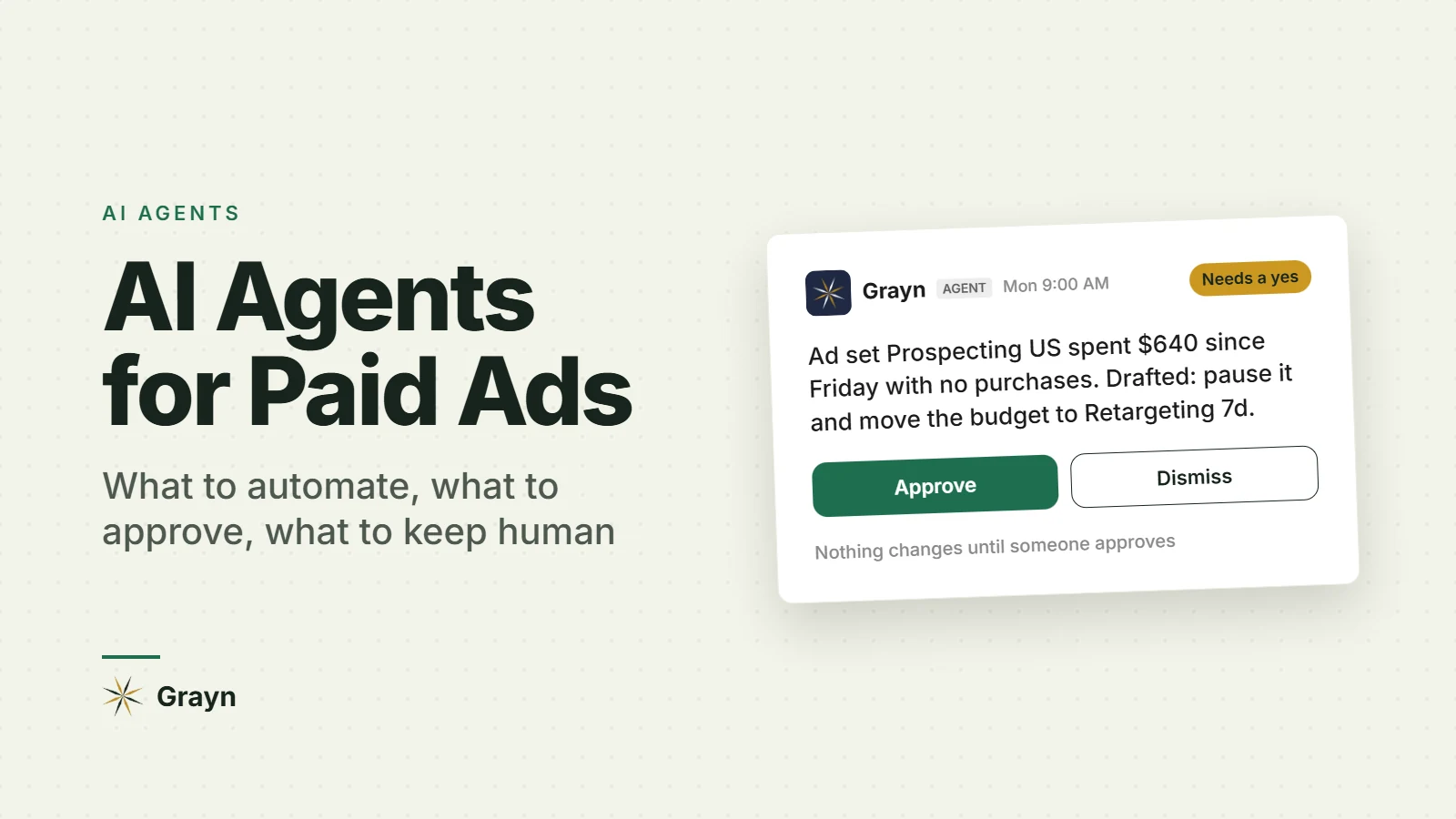
A person approves anything that spends money. Nothing changes in your ad accounts until someone on your team says yes.
Claude + Meta's ads MCP server | Grayn | |
|---|---|---|
Channels it sees | Meta only, through this connection | Meta, Google Ads, Apple Ads, GA4, Search Console, Tag Manager, Braze and RevenueCat |
When it works | When someone opens a chat and asks | When asked in Slack, plus alerts and scheduled digests |
Who sees the answer | The person in the chat | Everyone in the Slack channel |
Changes to your ad account | Whatever your locks allow | Only after someone on your team approves |
Best for | Digging into one account or drafting a campaign | Watching every channel and answering the team's questions day to day |
The two work well side by side. Use Claude with Meta's server when you want to dig into something specific. Let Grayn keep watch across every channel and answer questions where your team already talks.
Start free with $200 in credits. No credit card needed.
FAQ
Is there an official Meta Ads MCP server? Yes. Meta hosts it at https://mcp.facebook.com/ads. Meta launched it in open beta on April 29, 2026, and it works with Claude, ChatGPT and other MCP clients.
Do I need a Meta developer app? No. Meta's docs say you don't need your own Meta app to use the ads MCP server. You sign in with Facebook Login for Business. An app only matters if you're building your own integration or connecting other businesses' accounts.
Can I make the Meta Ads MCP read-only? Yes, three ways, and it's worth using at least two: sign in as a user with limited access, set ads MCP server rules that block every kind of change, and switch off Claude's write tools.
Can Claude launch ads that go live on their own? Not in one step. New campaigns, ad sets and ads are created paused. Turning them on is a separate action Claude can take if you let it, which is why lock 3 blocks delivery status changes and lock 4 keeps every write on approval.
Will connecting Claude get my ad account banned? Meta's ads MCP server is Meta's own, authorized connection for AI tools. What Claude creates still has to follow Meta's advertising policies and go through ad review, like anything you make yourself.
Does the Meta Ads MCP work with ChatGPT? Yes. Meta lists ChatGPT as a supported client, and its setup page walks through connecting it. The same locks apply.